Chapter 07
The tracks
Every kind of node has its own track. This chapter goes through every track in turn. The timeline stacks them in a different order: Cue, FX, Move, Animation, Skybox, TP, Aerobics, Voice, Mat, Snd, Text, Prompt, Image, Group, Guidance, Camera, Vision FX, Presence, Motion, Toggles, Mechanics. Each entry says what the node does in the world, what you set on it, and what to watch for.
Two words come up throughout:
- A range node has a start and an end. It does something for as long as the playhead is inside it.
- A point node has only a start. It does one thing at that moment.
When two nodes on the same track overlap and both want the same object or the same viewer, Dreamer Pro decides. Most tracks pick one winner: the earlier start, then the longer node, then the lane with the higher number, then a conditional node over an unconditional one. Lint tells you who wins on those tracks. A few tracks have their own rule, given in their section: Cue, Skybox, Mat-swap, Presence, Aerobics and Vision FX.
Cue#
A Cue puts an object on stage between its start and end. The object is turned on at the start and off at the end, with an entrance effect on the way in and an exit effect on the way out.

Settings on the General page: the Object.

Settings on the Transition page, the panel's second tab:
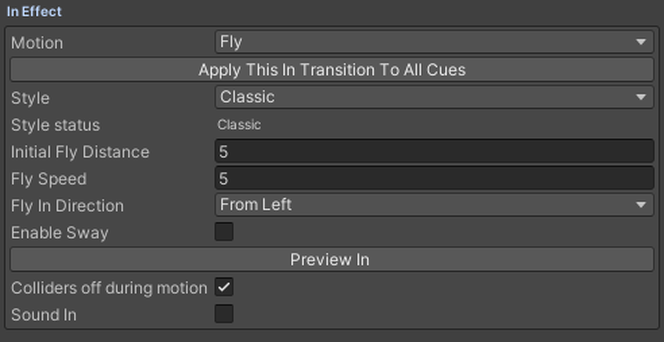
- In Effect and Out Effect. Each is None, Spin, Bounce, Fly, Scale or Shake.
- A Style for each effect. Pick any Style but Classic and a strength slider appears. Spin adds a direction and a pivot.
- Fly In and Fly Out direction, for Fly.
- "Colliders off during motion". Nothing bumps the viewer while the object flies.
- Sound In and Sound Out. Each creates a sound that plays with the transition.
- "Show before the dream starts", for a cue that touches the very start.
Watch for
leave the object switched on in the scene. Dreamer Pro hides every cue object when the world loads, so you do not have to.
To keep an object on stage to the end, drag the cue's end to the end of the Dream. The Dream lasts until the latest thing on the timeline ends. Dragging past that only makes the Dream longer.
Fly always has a direction. You pick it from a list. Choose From Custom Direction, leave the vector at 0, 0, 0, and the object appears in place with no motion.
Shake amounts are in meters. Start small.
Two Cues on the same object: the object stays on stage while either plays, and the later start decides where it is.
FX#
An FX node keeps an object moving for as long as it plays: Hover, Pulsate, Sway, Jitter, Rotate and Orbit, alone or together.

Settings:
- Object, and a Starting Recipe.
- Each behavior's own values: height and speed for Hover, frequency for Jitter, angle and axis for Sway, radius and speed for Orbit.
- "Return to Origin" on Orbit, so the object comes back to where it started.
- "Colliders off during motion", off by default. A moving object cannot push, block or carry the viewer.
- A Style, and Reseed for a fresh random pattern.
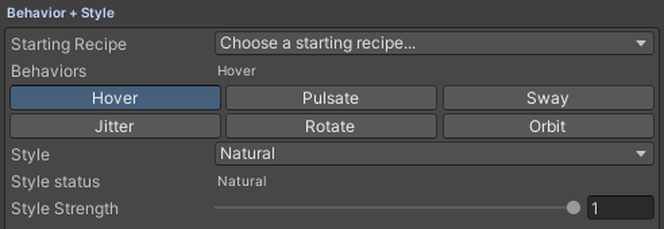
An FX node can be linked to a Cue on the same object, so it plays only while the object is on stage. The Cue's panel offers "Create New Linked FX" and "Link Existing FX". An unlinked FX on an object that is not in any Cue needs that object to be on already.

Watch for
Pulsate scales from whatever size the object has when the Dream loads. While a Move is holding it, Pulsate scales from the moved size instead. FX plays on top of a Move, so a moved object keeps its new place and the FX layers over it.
Skybox#
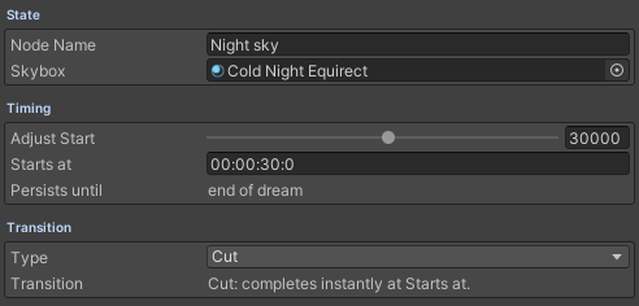
A Skybox node changes the sky at its start. The sky stays changed until the next Skybox node. The sky at any moment is the latest Skybox node at or before the playhead. Scrubbing and joining late both land on the right sky. The sky does not come back on its own when the Dream ends. Put a Skybox node at the end that sets the world's own sky if you want it back.

Settings: the Skybox material; the Type, Cut or Spin; the transition length for Spin.
Watch for
Spin needs a sky material with a rotation setting. A material without one does not turn: Spin still waits out the transition time and swaps the sky at the halfway point. Make a Skybox node conditional to give one viewer a different sky from everyone else.
Teleport#
A Teleport moves every viewer in the Dream to a destination at its start. They land in a formation.

Settings: the Destination transform, and Show Scene Gizmos to draw the formation in the Scene view. Point the transform the way you want viewers to face.

Under Formation and Facing:
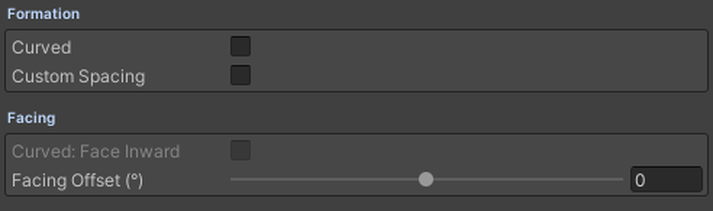
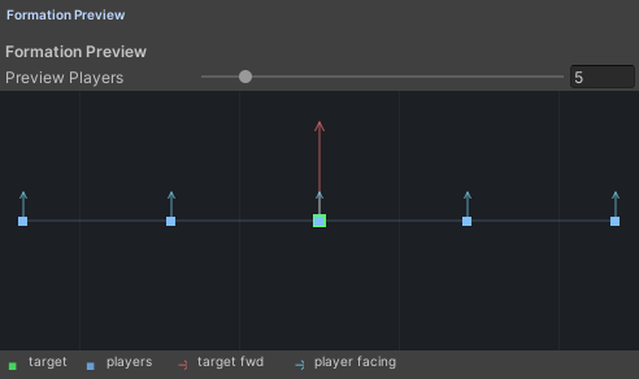
- Curved. On gives a curve, with a radius and an angle span facing inward or outward. Off gives a row.
- Custom Spacing, the gap between people.
- A Facing offset.
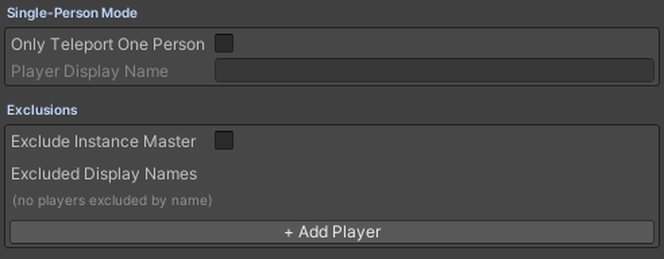
Under Single-Person Mode and Exclusions: "Only Teleport One Person" moves one named person. Exclusions takes display names. "Exclude Instance Master" leaves the master where they are.
Formation Preview draws the row or curve in the panel. Preview Players sets how many people it draws. That count applies in the panel and on the Scene gizmo.
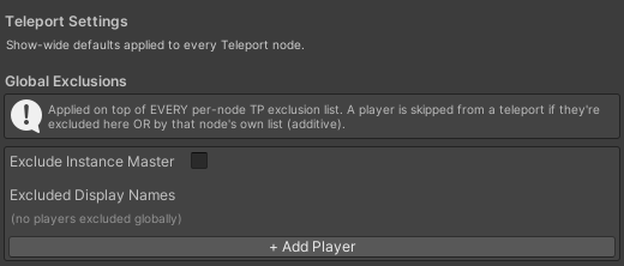
Right-click the TP track's label for show-wide exclusions. Every Teleport node skips those names, on top of its own list.
Watch for
in a world with one Dream and no zone, a teleport moves everyone in the instance. Give the Dream a zone and it moves only the people in that Dream. A conditional or single-person teleport lands its person on the Destination without a formation. Dragging the time bar in the world does not teleport you while you drag; the teleport lands when you let go. A teleport that falls inside a Camera shot does not happen at all. It is skipped, not saved for later.
Mat-swap#
A Mat-swap changes the material of an object at its start. The object wears the material of the latest Mat-swap at or before the playhead. Before the first one it wears its own. It keeps the last swap after the Dream ends, so add a Mat-swap back to the original if you want it returned.

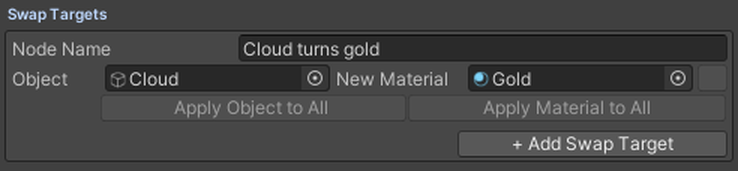
Settings: one or more Swap Targets, each an Object and a New Material; Apply Object to All and Apply Material to All fill every target at once.
Watch for
the object needs a renderer, and only its first material slot changes. Changing a material also breaks static batching. Do not swap on anything marked Batching Static.
Sound#
A Sound node plays an audio clip. Dreamer Pro makes and manages the audio source for you. See the Sound and Voice chapter for the whole picture.
Settings:
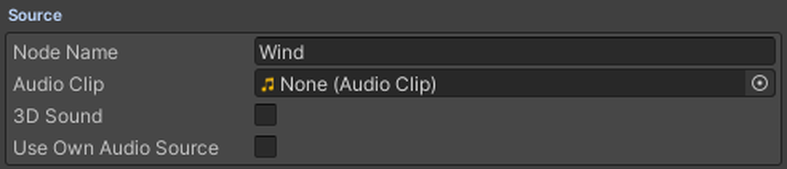
- Audio Clip.
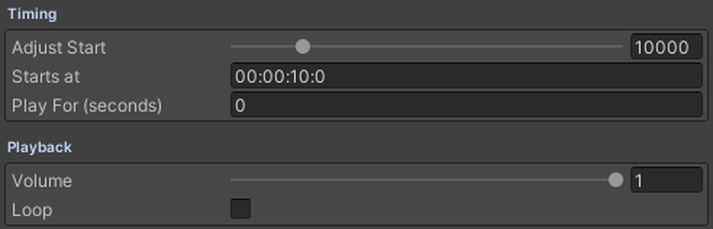
- Play For, how long it plays. At 0 it plays the whole clip once. With Loop on, 0 loops to the end of the Dream.
- Volume and Loop.
- 3D Sound. This plays it from a place in the world instead of everywhere.
Watch for
sounds follow the video. Pause or scrub and they pause too, then resume at the matching offset. A sound with no clip plays nothing, and Lint says so.
Move#
A Move glides an object to a target position, rotation and scale, holds it there, and can bring it back.

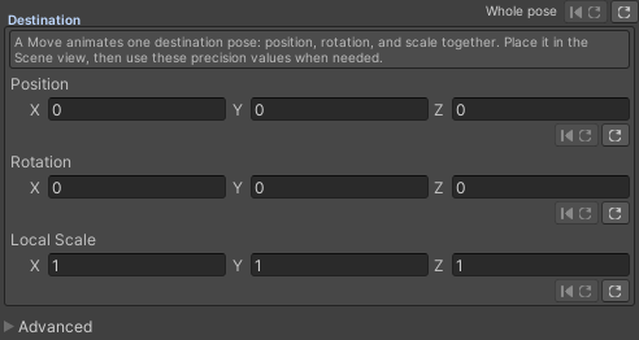
Settings: the Object, and "Colliders off during motion". Then where to go. Give it a position, rotation and scale, or point it at a Go To transform.
Under Motion:
- Smooth Move Start eases the object out to its destination over its Start Duration.
- Include Rotation and Include Scale are set once for the way out, and again for the way back.
- Return When Done brings the object back. Turning it on gives you Hold Duration, Move Back To Starting Position and Smooth Move End.
- Hold Duration is the length of the whole move, with the ease out and the ease back carved out of it. If the eases do not fit inside it, the extra is cut.
- Smooth Move End eases the return over its Return Duration. With it off, the object snaps back instead.
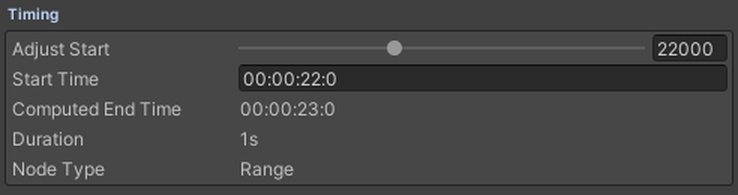
Computed End Time is when the whole move finishes. Duration sits right under it and says how long it takes.
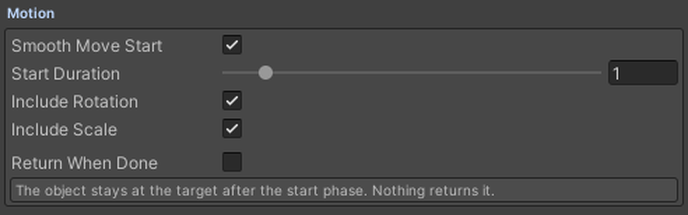
With Smooth Move Start and Return When Done both off, a Move is a point node: the object jumps. Turn either on and it becomes a range node whose phases you can drag on the timeline. The panel's Node Type row tells you which you have.
Watch for
an FX on the same object plays on top of the Move.
For a worked combination of these settings, with the numbers filled in, see Your second Dream or Recipes.
Aerobics#
An Aerobics node changes how a viewer can move while it plays.

Settings: Lock, two switches set separately, Block Walking and Block Jump.

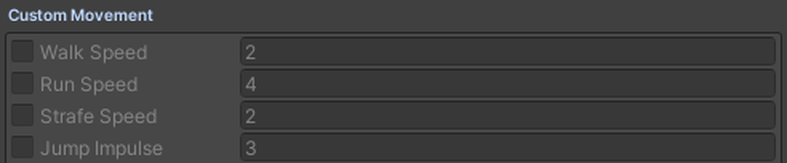
Then Custom Movement: walking, running and strafing speeds, and jump strength. Each speed has its own switch, so a node sets only what you turn on. A Lock greys out its own matching speed.
Watch for
two Aerobics nodes at the same time compose. Each one sets only the things it sets.
When two of them set the same thing, one wins: the earlier start, then the longer node, then the lane with the higher number. Press Lint to find same-setting clashes.
The viewer's movement returns to normal when the node ends.
Text#
A Text node shows text in front of each viewer.
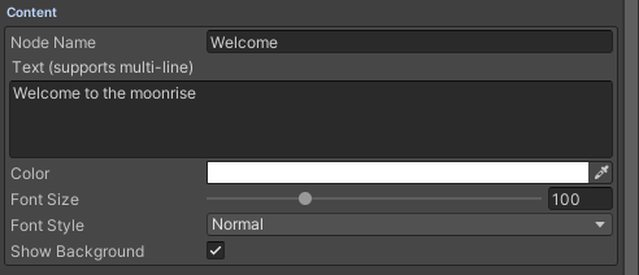
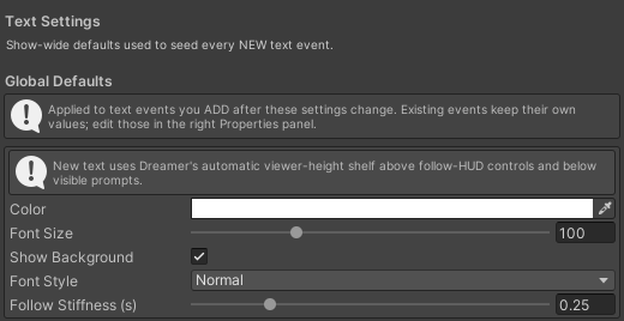
Settings: the text, its color, size and style, and Show Background.
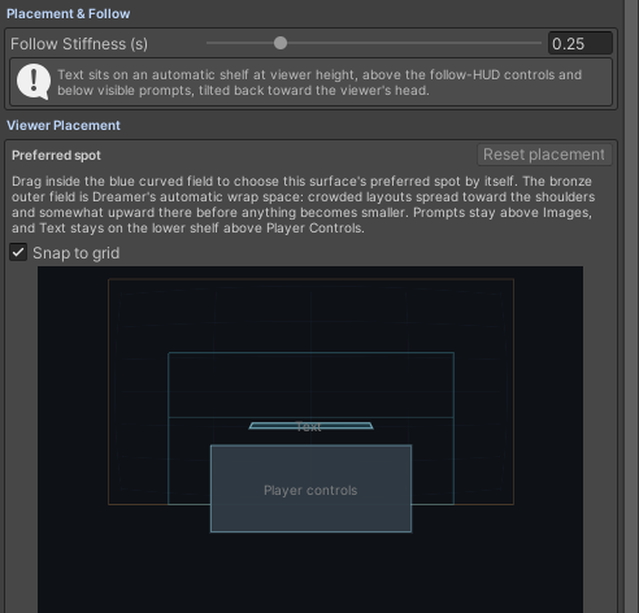
Under Viewer Placement, drag the spot where you want the text to sit in the viewer's view. Reset placement puts it back where Dreamer Pro had it.
More than one Text node can be up at once. Dreamer Pro lays them out together rather than picking one.
Under Placement and Follow: how stiffly the text follows the viewer's head.
Right-click the Text track's label for global defaults.
Watch for
text does not show during a Camera shot. It comes back when the shot ends. Text ducks under a prompt and moves aside for the player controls. In VR it can appear on the viewer's hand instead. See Viewer Surfaces on Hand in the Dream settings chapter.
Prompt#
A Prompt asks each viewer a question and remembers their answer.
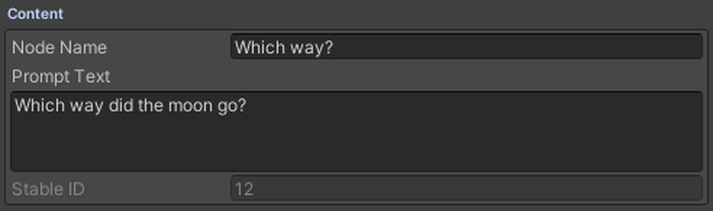
Settings: the Prompt Text. Drag the card's spot under Viewer Placement, or press Reset placement to put it back.
Under Answers:
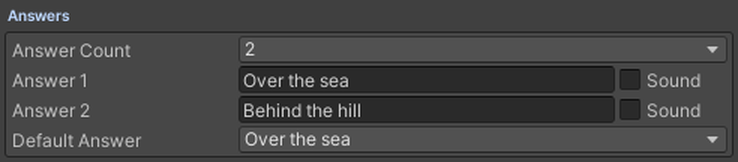
- Answer Count, up to four.
- Each answer's text, and an optional sound that plays when it is chosen.
- Default Answer. A viewer who does not answer before the node ends gets this one.
The card shows a countdown that drains as the node runs out. Up to two prompts can be up at once.
An answer is a condition. Any other node can require a certain answer to a certain prompt. That is how the show branches. See Conditions in the editor chapter.
Image#
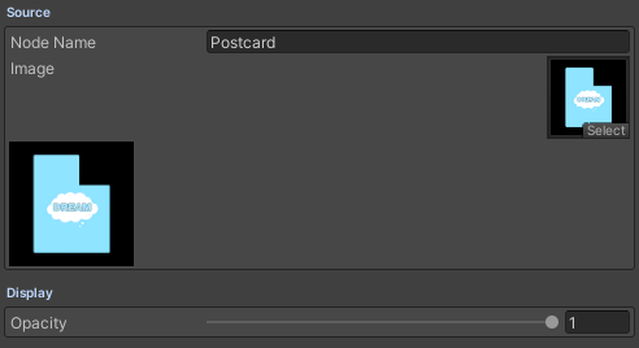
An Image node shows an image card in front of each viewer.
Settings: the Image and its Opacity. Viewer Placement drags the card's spot. Reset placement restores it.
Watch for
up to four images can be up at once. One shows large. Two sit side by side, three form a pyramid, four form a grid. In VR they can appear on the viewer's hand instead.
If an image card shows without its frame, press Rebuild Image Cards in the node's panel. That rebuilds the matte, outline and shadow around every card.
Group#
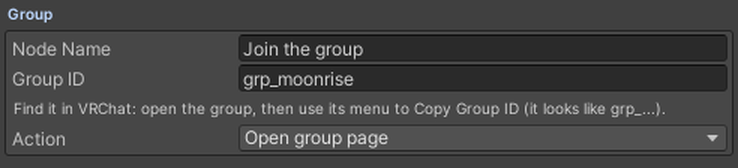
A Group node opens a VRChat group for the viewer at its start.
Settings: the Group ID, and the Action. The Action opens the group page, the join or listing page, or the group store.
Voice#
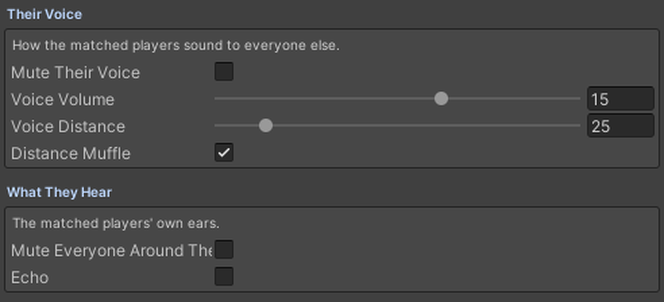
A Voice node changes how players sound while it plays. See the Sound and Voice chapter.

Settings: Mute Their Voice, Voice Volume, Voice Distance, Distance Muffle, Mute Everyone Around Them and Echo.
Presence, Toggles, Mechanics and Motion#
These four tracks direct a Dreamwalker, a recorded performer. They are covered together in the Dreamwalkers chapter.
- Presence puts the performer on stage for that window, playing that node's recording.
- Toggles turns parts of the performer on or off for that window: clothes, hair, props.
- Mechanics makes the performer react to each viewer: eyes, head or whole body turning toward them, and lets visitors pose the performer.
- Motion walks or teleports the performer from one place to another.
Animation#
An Animation node plays an animation clip on an object.
Settings:
- The Source Clip, and the Target Root it animates.
- Clip In, where in the clip to start.
- Speed Multiplier, and Playback: once or looping.
- Bake Rate.
- Which of position, rotation and scale to animate.
Animation data is baked for the world. Press Bake Animation Data after changing a clip.
Under Delivery, Embedded packs that data into the world. Hosted keeps it at a link instead: press Export Hosted .bin, upload the file, then paste its address into Hosted URL.
The upload check refuses a world whose animation data is missing or stale. The editor preview plays from the source clip.
Guidance#
A Guidance node points a viewer at something, or draws them a path. It never turns, moves or teleports them.

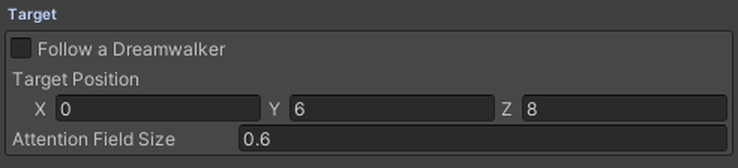
Look Here: an arrow points toward a target. Use a fixed Target, or turn on Follow a Dreamwalker and pick one. Attention Field Size sets how generously looking near the target counts. The arrow goes once the viewer has looked at it for a moment. A hidden or missing performer hides the cue rather than pointing at nothing.
Go Here: a destination and an Arrival Radius. Dreamer Pro draws a straight dotted path on the floor from the viewer's own position. It is a hint, not navigation. The straight path can cross walls. Inside the radius the path goes; step out and it comes back.
Under When to Show, Reappear delay sets how long after the viewer looks away the arrow comes back.

Watch for
guidance stays hidden during loading, the intro cards and prompts.
Camera#
A Camera node frames a shot. The viewer is sealed inside a black shell with one window on the world, and the world moves behind that window to show what you framed. The viewer's head stays free to look around the window.
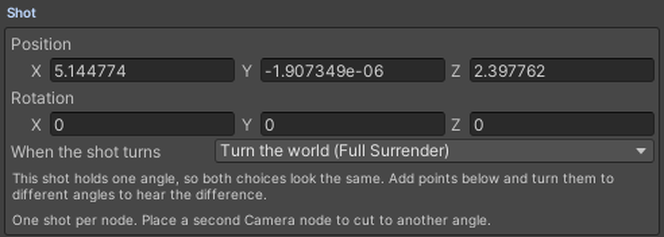
Settings on the node: the shot's Position and Rotation, and "When the shot turns": turn the world (Full Surrender) or move the window (Soft Surrender).
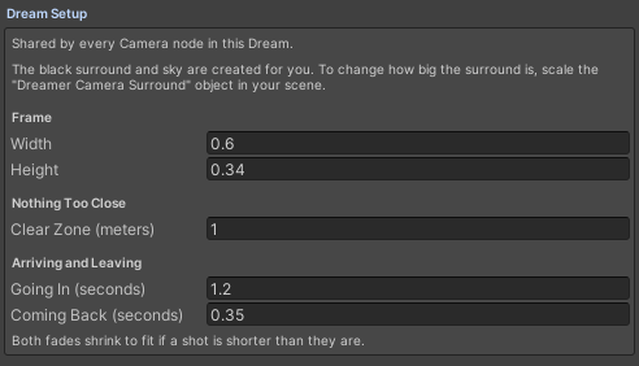
Settings under Dream Setup are shared by every Camera node in the Dream:
- Width and Height of the Frame.
- Clear Zone. This pushes the near edge of the picture out so nothing clips.
- Going In and Coming Back times.
Change one of those and every shot in the Dream changes.
A shot can travel. Press Add Point to give the node more points, each with its own position and rotation. The shot moves through them at an even speed over the node's length, easing in and out once across the whole move. Remove takes a point away.

During a shot the player controls leave wherever they sat and travel to a spot just below the window. They come back when the shot ends. Turn away from the window and an arrow points the viewer back. Two Camera nodes back to back cut from one shot to the next.
Watch for
Text nodes and Guidance nodes are hidden for the length of a shot. Clear Zone hides the viewer's own hands, and that is why the controls travel. The viewer cannot walk during a shot. A teleport inside a shot is skipped.
Vision FX#
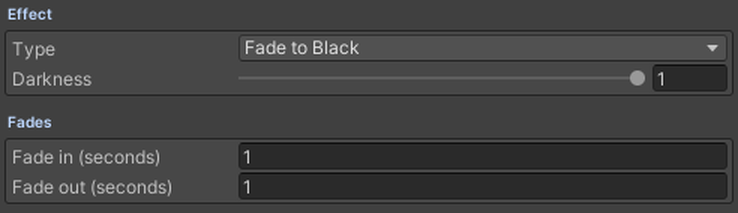
A Vision FX node acts on the viewer's sight. Its one effect is Fade to Black: the view fades to black over the fade-in, holds, and fades back over the fade-out.
Settings: the Type, Fade to Black; Darkness, from 0 to 1; Fade in and Fade out in seconds.
Where two Vision FX nodes overlap, the darker one wins. Dreamer Pro works the darkness out from the timeline, so scrubbing, seeking and joining late all land on the right darkness. Nothing fades while the Dream is waiting to start. At full darkness nothing shows through at all, neither the world nor the player controls.