Chapter 06
Dream settings
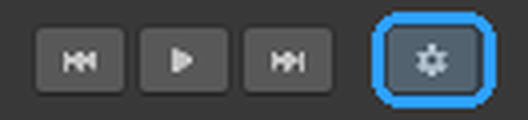
The cog above the timeline opens the Dream's settings in the Properties panel.
The panel has four pages: Video, Player, Opening and Preview. The settings about the show itself, such as whether it is a slideshow and who may control it, sit at the top of Video in its Playback box.

Naming a Dream#
A new Dream is called Dream 1, Dream 2 and so on. Rename its Dreamer Pro Player object in the Hierarchy and the tab follows. A name that came in with an imported .dream file wins over the object name. The name shows on the tab, in the export list, and inside a .dream file.
Video#
Shared or Local#
A Shared Dream plays one timeline for the whole room. Everyone watches the same moment together, and pausing or seeking changes it for everyone.
A Local Dream gives every visitor their own playhead. Each person starts when they walk in, pauses their own show, scrubs their own show, and two people in the same room can be at completely different moments.

A Local Dream that plays a video needs its own video player. Press Set Up Its Own Video Player when the panel offers it. Until it has one, the Dream still plays as a Shared Dream, and the panel says so. Every Local Dream in a scene has its own video player, and each one is alive when the world loads, so be sparing with them on Quest.
Walking out of a Local Dream's zone pauses your show where you stood. Walking back in picks it up from there. Watching it to the end lets it start from the top on your next visit.
Hosted or Non-hosted#
- Hosted. The Dream plays in time with a video at a link, through the video player in the scene.
- Non-hosted. The Dream runs on its own clock, with no hosted video. Slideshows use this. A new Dream starts Non-hosted.

Slideshow#
Switch the Dream to Non-hosted first, or this stays grey. On, the Dream becomes a slideshow. A row of slide tabs appears, and every slide is its own timeline inside the same Dream. See the Slideshows chapter.

Autoplay#
On, the Dream starts on its own when the world loads, or when someone walks into its zone. A Shared Dream on Hosted playback cannot use Autoplay. The room's video player owns starting it. Off, it waits for someone to press play. Autoplay is on by default for slideshows. A gated Dream waits for the gate, then starts the moment it is opened.
Gated Dream#
On, the Dream waits behind a gate until someone opens it.
- By Pin. Visitors arrive at the title card with a box for a six-character pin and an Enter button. The right pin opens the Dream. A wrong one shakes the box and turns the message red. Set the pin here, or press New Pin for a fresh one.
- By Name. The Dream opens by itself for the people on the Guest List the moment they arrive. Everyone else sees a note that the Dream is private. There is no box.

A gate holds the start of a Shared Dream, not the view. Once one person opens it, the show plays in the room for everyone there. A Local Dream gates per visitor. Each person opens their own copy.
Who May Control still applies to a gated Dream. Someone with the pin can open it and still see the simpler player.
A Shared Dream on hosted video cannot be gated, because the room's video cannot be held shut. Lint says so.
Who May Control#
Who can press play, pause, skip and scrub in the world.
- Not set (works like before). Where every Dream starts. The Dream behaves as it did before this setting existed.
- Owner Only. The person who owns the Dream's clock in the room.
- Everyone.
- Owner + Specific Names.
- Specific Names. Only the people you list. Even the host cannot control the Dream unless you name them.
Names are VRChat display names, matched exactly.

Viewers the setting does not allow see a simpler player: the time bar and the times, with volume and resync still theirs, and a note that the host controls playback. Under Specific Names that note reads "The presenter controls playback" instead. In a slideshow they get no slide panel. When someone the setting allows presses a control before the clock is theirs, that press claims it. The player says so, and the next press drives.
Video#
Shown when Playback is Hosted. URL is the video link. Quest fallback URL, behind a foldout, is a separate link for Quest if the video needs one.

Timeline Audio#
The box waits until the Dream has a video link. Once there is one, press Fetch Timeline Audio, then Fetch Audio to confirm. Change the link and the old audio is removed and Dreamer Pro offers to fetch the new one. Refetch pulls the same link again. Remove clears it. Dreamer Pro fetches the video's sound and draws its waveform under the ruler. Refetch after changing the link. Remove clears it.

Length#
In the Dream Duration box, Length is set automatically from the latest thing on the timeline. That is true with a video and without one. It is shown locked, not typed. If the length did not reach the Dream's player, a Repair Dream Length button appears with the reason above it. Press it, then upload again.

Player#
Placement#
In the Player Controls box, Placement chooses whether the player controls belong to the world or to each viewer.
- Stationary. The controls stay where you put them in the scene, for everyone. Viewers get no settings. Use it for a booth you present yourself, or a stage where only you and your crew should reach the controls.
- Moving. Each viewer carries the controls. On desktop they float or sit on the screen; in VR they ride the hand to start, or float, as the viewer chooses. See the In the world chapter.

Attention Guidance System#
"Guide viewers toward important action". On, an arrow points a viewer toward a performer who is behind them. Turn it off and no Guidance node appears at all, including the Guidance track's own Look Here and Go Here.

Viewer Surface Layout#
Text, images, prompts and the player controls all appear in front of the viewer, inside a comfortable zone of their view. Layout spacing chooses the zone. Compact fits more in. Comfortable is the default. Airy gives each surface more room. Choose Custom to set the zone yourself: horizontal reach, upper reach, lower reach, the spacing between groups, within a group, and around prompts. "Reset custom values to Comfortable" restores the defaults.

Viewer Surfaces on Hand#
In VR, text, images and prompts can appear on the viewer's hand instead of in front of them. Turn on "Attach by type" to pick which types ride the hand, or "Attach all types to hand" for every one of them. Turn on "Attach by node" to decide one node at a time. Hand sizes sets how big they draw. "Vibrate when something appears on the hand" buzzes the hand when something new arrives, and "Decide by node" under it puts that switch on each node instead.

Playback Access#
For a Shared Dream, who may control the video player itself. A Local Dream does not show this. Choose a preset. Named Players applies the list of VRChat display names you type here. Wire Access appears only when the scene has no access control yet, and sets one up.

Dream Zone#
A zone is the part of the world where this Dream is active. Shape is Dome or Box. "Only play inside a zone" makes the Dream wait for a visitor to walk in. Show in Scene points the Scene view at the zone. This section shows while the scene has one Dream. With several Dreams, zones are set in Configure Multi-Dream.
Opening#
Intro cards show before the Dream plays, over a blackout. On a Hosted Dream they cover the video's load. The page is greyed out while Placement is Stationary.

- Add Intro Card. Each card takes an image, with its width, height and how close it sits. Its timing is Fade In, Hold and Fade Out, all in seconds. The card's total shows under them. Move a card up or down the list with the arrows, or press Delete to remove it.
- Allow Skip. Viewers can move the intro on with the trigger or a click. The skip is shared, so one viewer moves it on for everyone.
Preview#
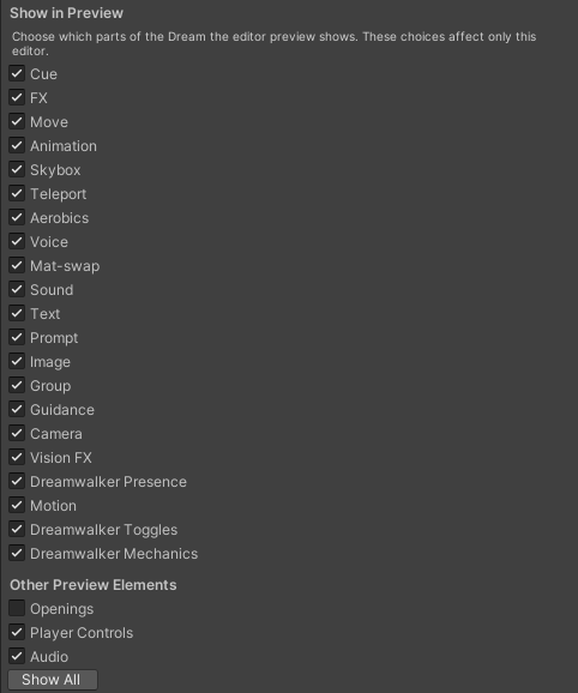
- Show in Preview. One switch per track, so you can mute a whole track from the preview while you work on another. Show All turns them all back on.
- Other Preview Elements. Openings, Player Controls and Audio, each with its own switch.
- Move. Snap the Move gizmo snaps the Move node's Scene-view handle to steps: Position Step, Rotation Step and Scale Step, with Reset Steps.
- Preview Viewer. The rig that stands in for the viewer in the Scene view.
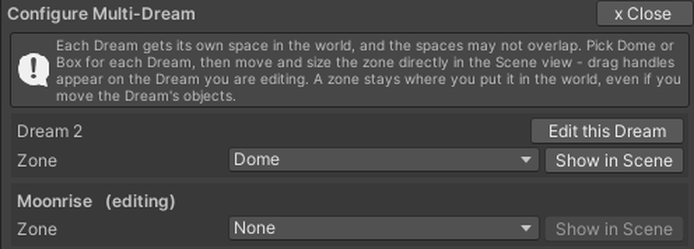
Configure Multi-Dream#
A scene can hold up to ten Dreams. The plus turns grey once you have ten. The Configure Multi-Dream button above the Dream tabs lists them with their zones. Each visitor watches one Dream at a time, chosen by the zone they are standing in. Edit this Dream switches the editor to it. Show in Scene points the Scene view at that Dream's zone.